How to Add and Configure iPhone Lock Screen Widgets 📱⚙️

Scheduler · iPhone Calendar App
Hello 😊 I’m the developer of Money Keeper, Scheduler, and Dayte!
Money Keeper, Scheduler, and Dayte support Lock Screen Widgets.
To help you customize your iPhone Lock Screen and make the most of these widgets, I’d like to share how to add and configure Lock Screen Widgets 👍
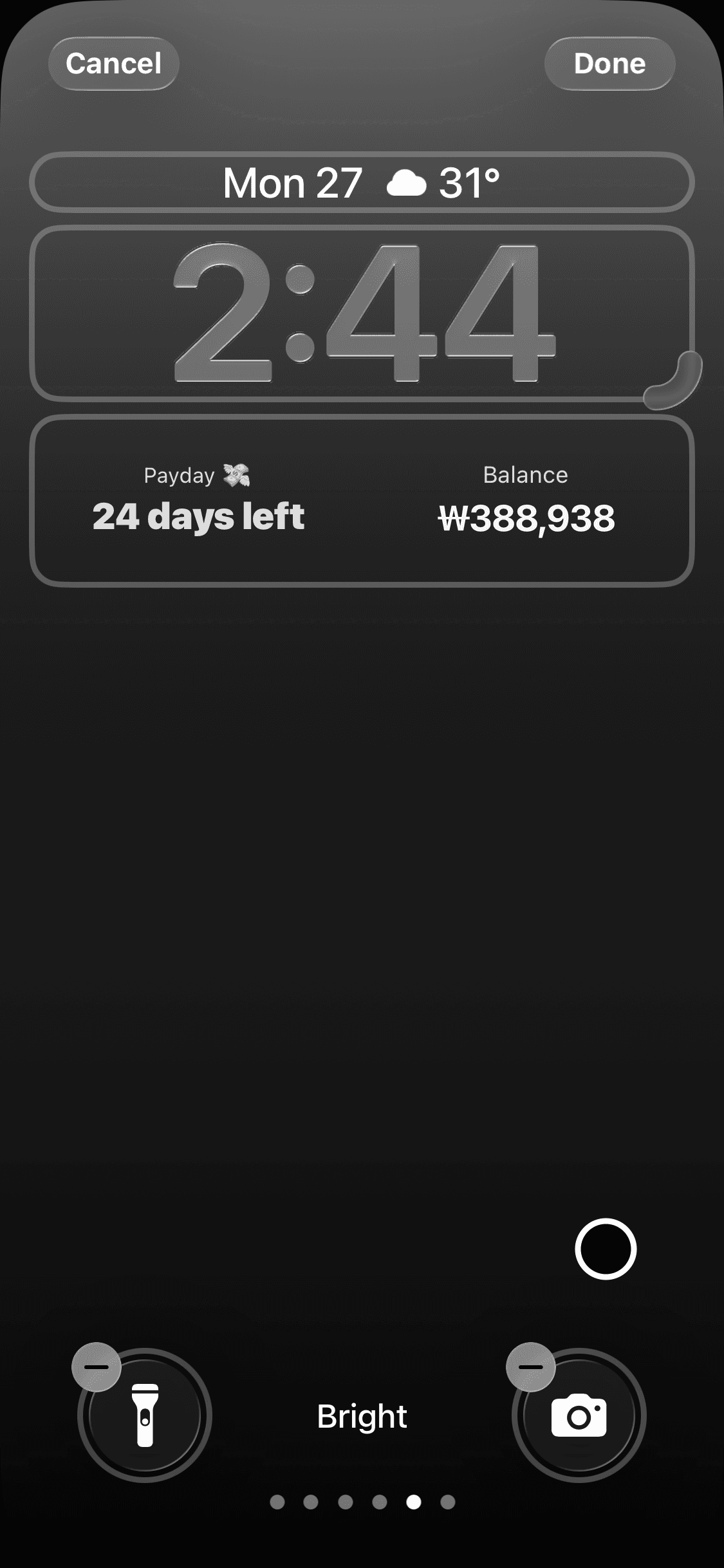
(1) Press and hold an empty area on your iPhone Lock Screen until it enters edit mode, as shown below.
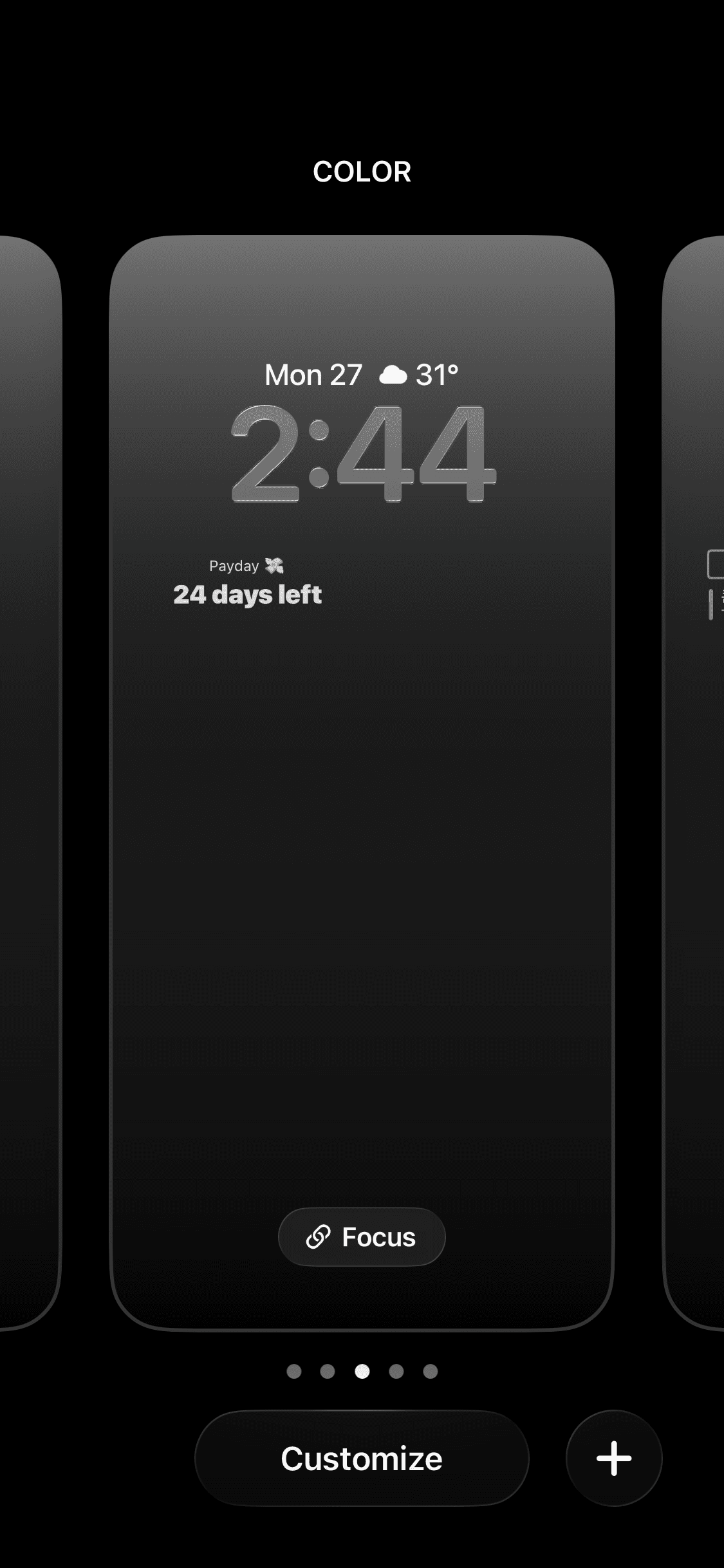
(2) Tap Customize at the bottom of the screen from step (1). Editable areas will appear. Tap the widget area, then Add Widgets will appear below. Scroll down and select the app whose widget you want to add.
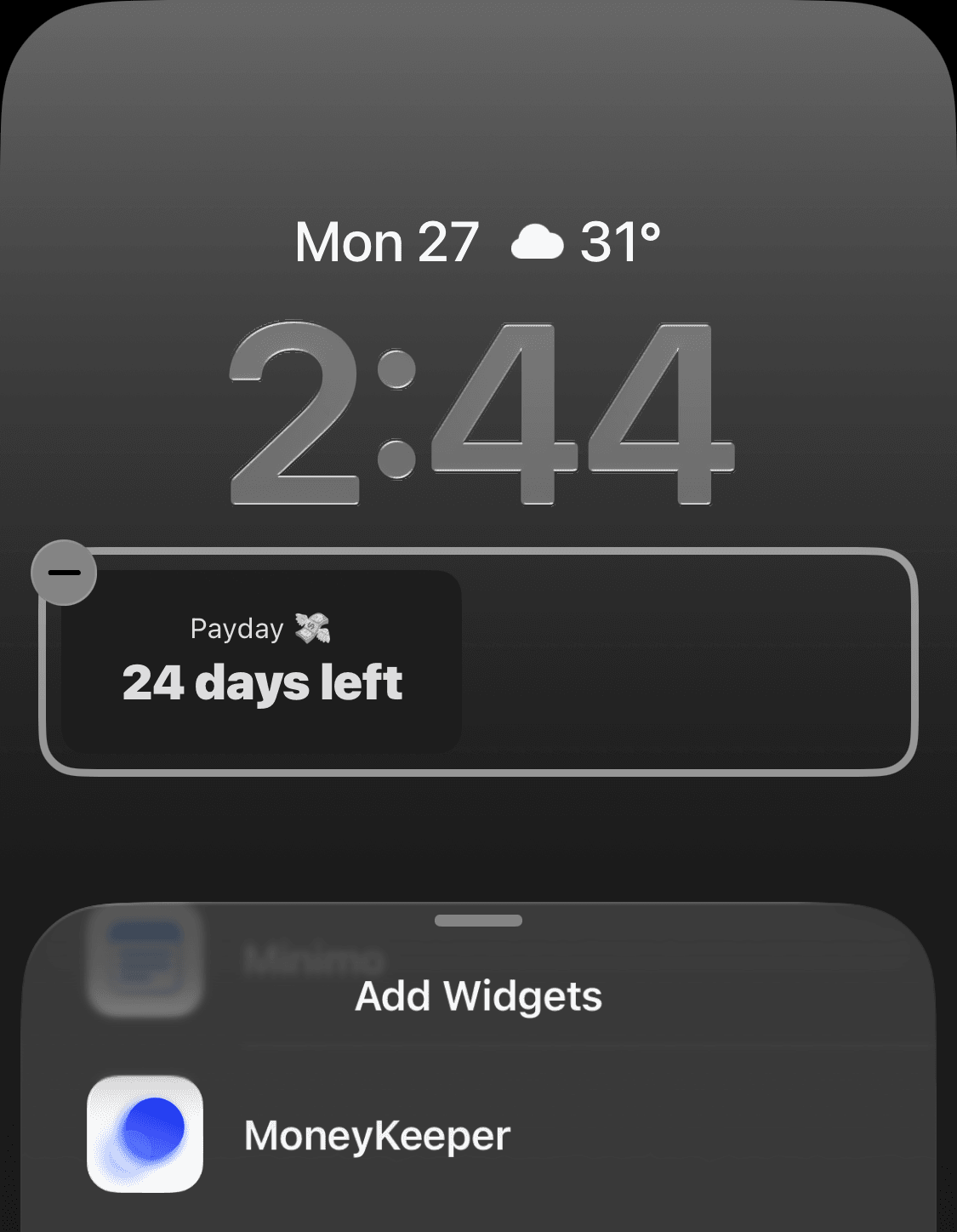
(3) Select the widget you want to add.
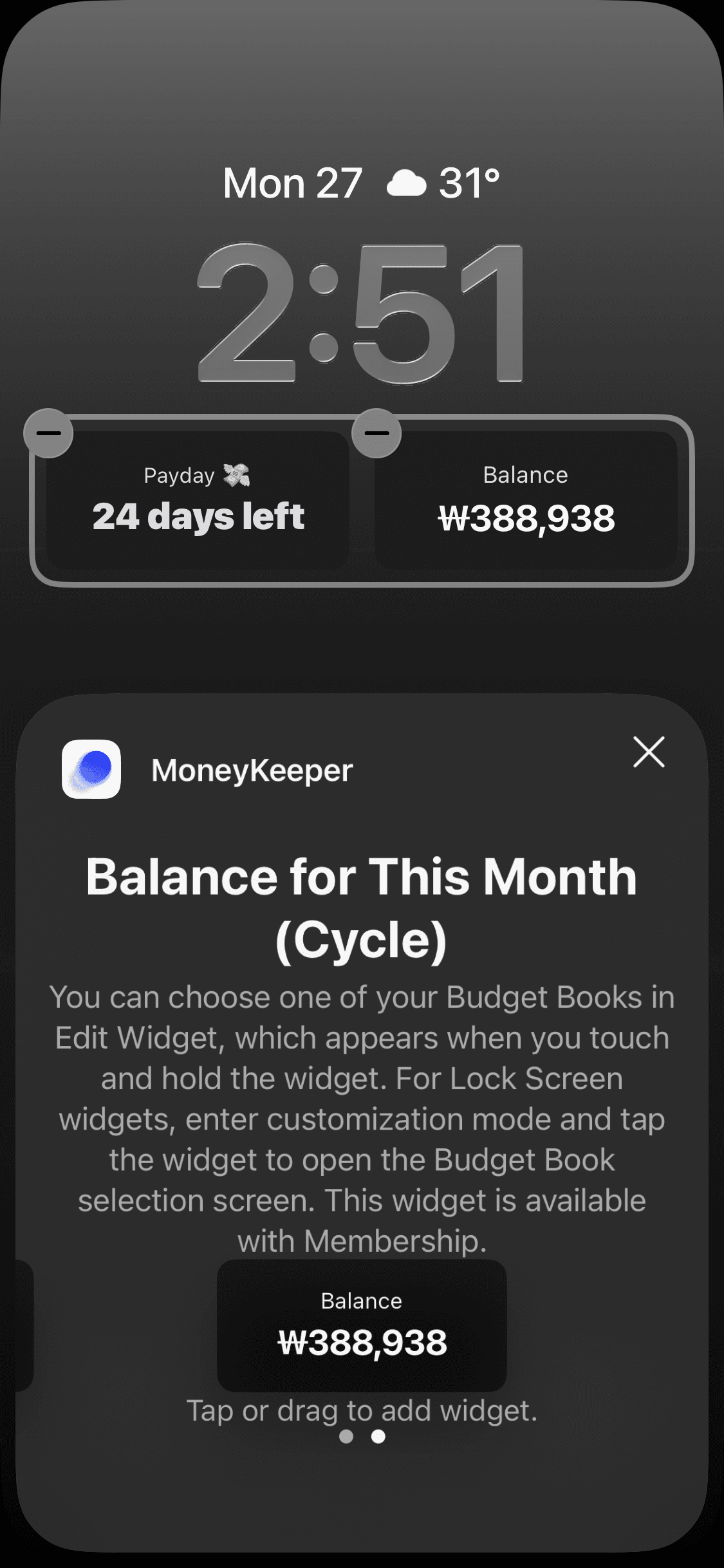
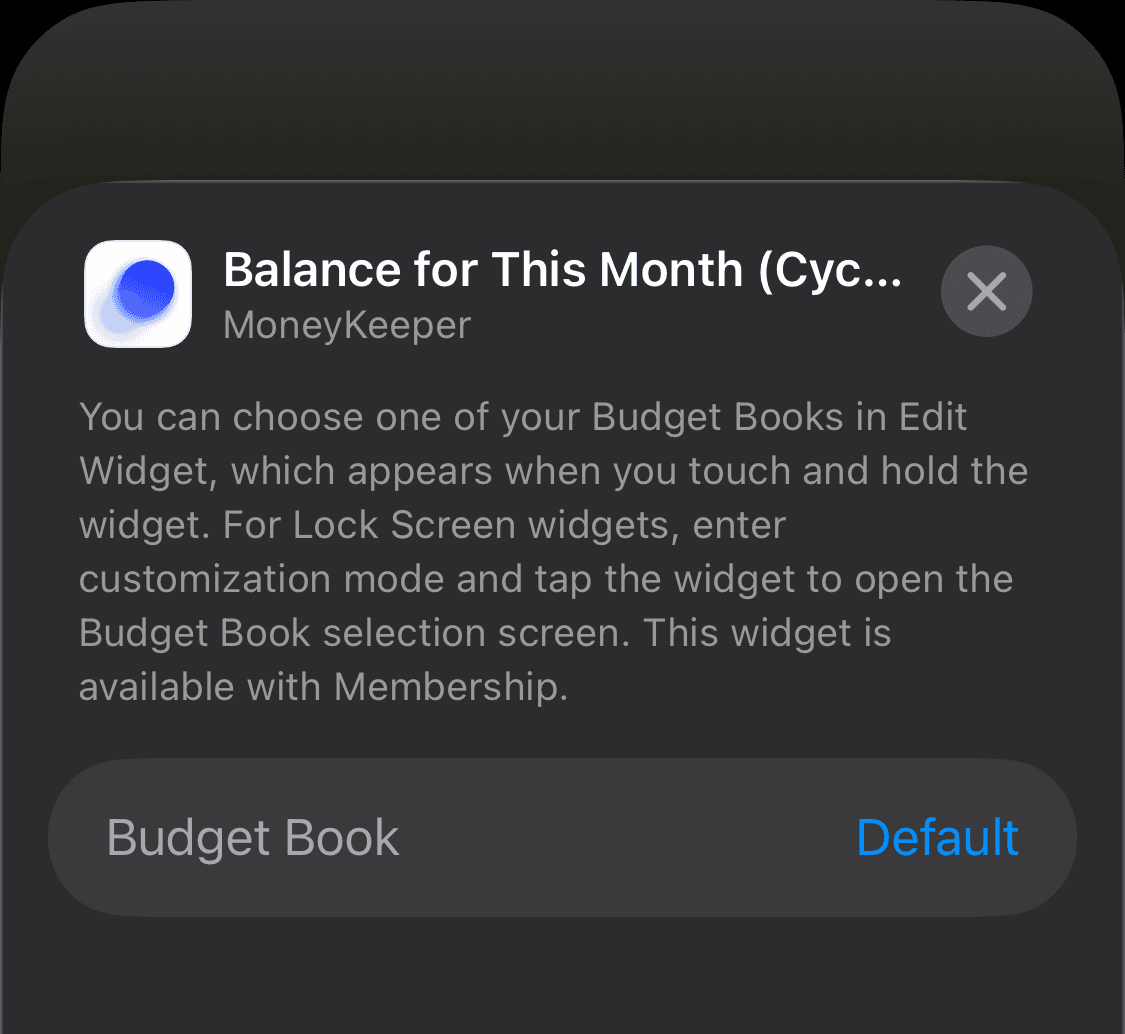
(4) If you have created multiple Budget Books in Money Keeper, keep the screen in the state shown in step (3) and tap the widget you added. A screen will appear where you can choose which book to display.
The same applies to Dayte. While still in the state shown in step (3), tap the widget to choose which special day you want it to display.
Be sure to tap the widget while you are still in the editing mode shown in step (3). Sometimes the selection screen may not appear on the first tap, so try tapping the widget a few times until the screen below appears.
(5) Tap an empty area, then tap Done in the top-right corner to save your settings.
Here are a few helpful tips from the developer of Scheduler, Money Keeper, and Dayte 🍯
Scheduler
iPhone Calendar App

Money Keeper
Expenses Tracker, Payday & Budget Calendar

Dayte
Countdown · Only What You Need