Handy Tips for Linking External Calendars 🍯

Scheduler · iPhone Calendar App
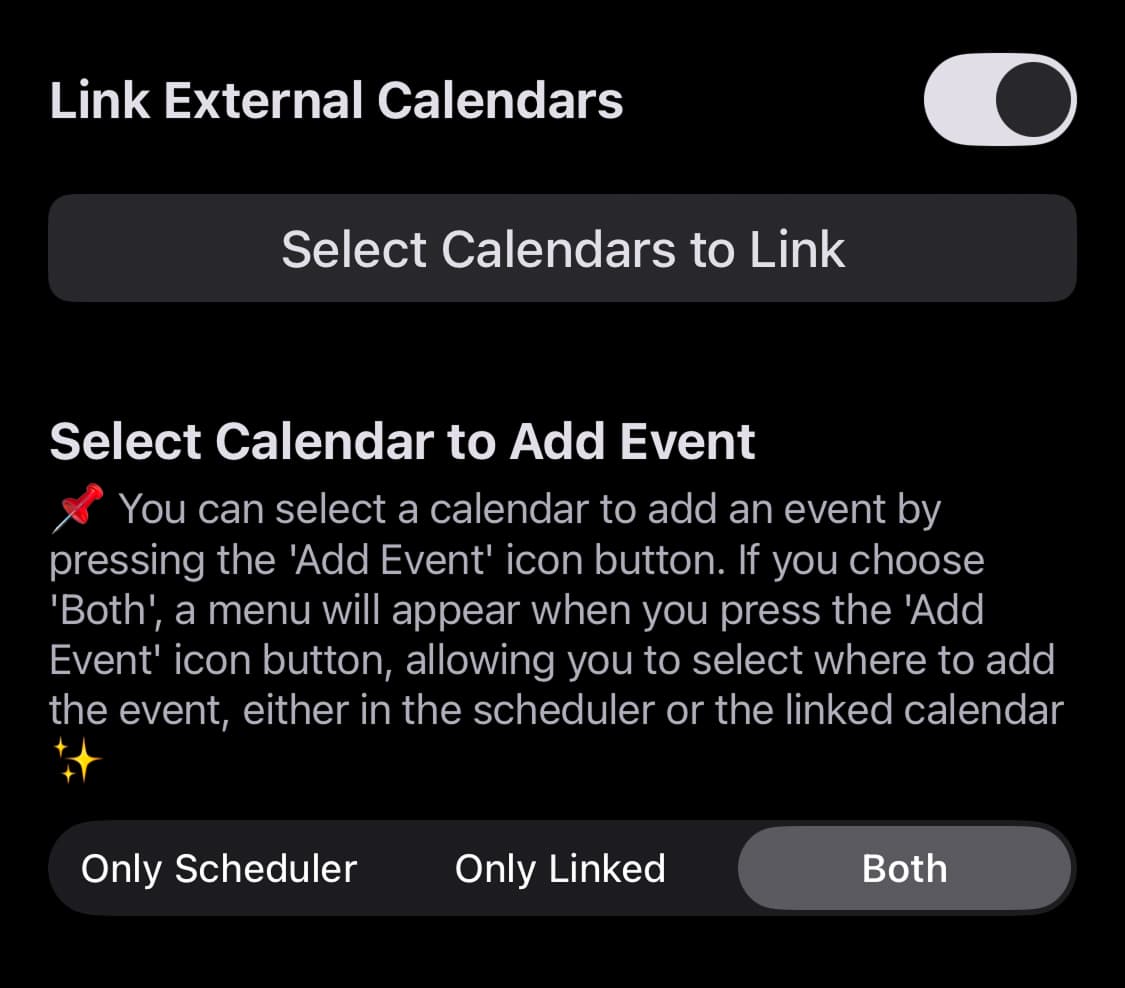
By linking external calendars to the Scheduler app, you can access various related settings. Among them, configuring “Select Calendar to Add Event” to suit your preferences can make the app even more convenient to use 🙌
(1) Open the “More” screen by tapping the three-dot button in the top-right corner of the Scheduler app screen, then go to “Preferences.”
(2) If you have enabled “Link External Calendars,” you can configure “Select Calendar to Add Event” according to your preferences.
📌 Only Scheduler
-> This option is ideal if you want to view events from external calendars in the Scheduler app but do not want to add events to those external calendars. Within the Scheduler app, you can only create Scheduler events, so tapping the “Add Event” icon immediately opens the Scheduler event creation screen. This is the default setting.
📌 Only Linked
-> This option is ideal if you do not use Scheduler’s built-in events and would rather manage events from linked calendars within the Scheduler app. It is especially useful for users who primarily use Apple’s default Calendar app, and for those who want to view Apple Calendar events in Scheduler widgets. Tapping the “Add Event” icon immediately opens the linked calendar event creation screen.
📌 Both
-> This option is ideal if you want to manage both Scheduler events and linked calendar events within the Scheduler app. When you tap the “Add Event” icon, a menu appears allowing you to choose whether to add the event to Scheduler or to a linked calendar.

Scheduler
iPhone Calendar App